

How to Use Google Maps Offline: Download Maps and Navigate Without Internet (2026)
Losing your internet connection while travelling can make navigation difficult, especially when you are visiting an unfamiliar city, driving through remote areas, or trying to avoid expensive mobile data charges. Fortunately, Google Maps includes an offline maps feature that lets you download selected areas to your phone before you travel.
Once an area has been downloaded, Google Maps can use that saved map to provide driving directions when your internet connection is unavailable. This can be useful during road trips, international travel, and journeys through places with unreliable mobile coverage.
However, offline Google Maps does not include every online feature. Live traffic information, alternative routes, and certain types of directions are unavailable without an internet connection.
This guide explains how to download Google Maps offline on Android and iPhone, manage saved maps, and prepare your phone before travelling.
1. What Are Google Maps Offline Maps?
Google Maps offline maps are downloaded map areas stored on your mobile device. Instead of loading all map information through a mobile data or Wi-Fi connection, the app can use the saved map when you are offline.
For example, if you are planning to drive across a city, you can download that area before leaving home. If your mobile network becomes unavailable during the journey, Google Maps may still provide driving navigation as long as your complete route is covered by the downloaded area.
Offline maps are particularly useful for:
- Travelling to places with weak mobile coverage.
- Driving through rural or remote areas.
- Visiting another country without purchasing a local data plan.
- Reducing mobile data usage during a journey.
- Keeping a map available when Wi-Fi is not accessible.
You must download the required area while you still have an internet connection.
2. How to Download Google Maps for Offline Use on Android
Android users can download an entire selected map area or save a particular location and adjust the boundaries before downloading.
Follow these steps:
- Connect your Android phone to Wi-Fi or mobile data.
- Open the Google Maps app.
- Sign in to your Google account if required.
- Tap your profile picture or account icon in the top-right corner.
- Select Offline maps.
- Tap Select your own map.
- Move and resize the selection box to cover the area you need.
- Check the selected region and estimated download size.
- Tap Download.
- Keep the app open or allow the download to finish before disconnecting from the internet.
After the download finishes, the selected map area will be available in your offline maps list.
Download a Map by Searching for a Place
You can also begin with a specific destination:
- Open Google Maps.
- Search for the city or location you plan to visit.
- Open its place information panel.
- Tap the More option if it appears.
- Select Download offline map.
- Adjust the selected area if necessary.
- Tap Download.
The exact position of buttons can vary with app versions and device interfaces. If the download option is not shown, use the Offline maps menu and select your own map instead.
3. How to Download Google Maps Offline on iPhone
The Google Maps app also supports offline map downloads on compatible iPhones and iPads.
To save an area:
- Open Google Maps on your iPhone.
- Make sure you have an internet connection.
- Search for the city or area you want to save.
- Tap the location name or address at the bottom of the screen.
- Open the More menu.
- Select Download offline map.
- Adjust the map boundaries to include the places you need.
- Tap Download.
You can also tap your profile picture, open Offline maps, and choose Select your own map to select a custom area.
Once the download is complete, you can find the saved area in the Offline maps section.
Important: Offline map availability can vary by country or region. If Google Maps does not offer the download option for a particular area, check the app's current availability and regional restrictions.
4. How to Use Google Maps Without an Internet Connection
Downloading a map is only the first step. You should also understand how to use it when your phone loses its internet connection.
Before travelling, confirm that the downloaded map covers your starting point, destination, and the roads connecting them.
When your internet connection becomes unavailable:
- Open Google Maps.
- Make sure your phone's location service is enabled.
- Search for your destination or select it on the downloaded map.
- Choose a driving route if offline directions are supported for that journey.
- Start navigation and follow the available directions.
Your phone can often determine its location using satellite-based positioning even without mobile data. However, GPS accuracy and availability can vary depending on your surroundings, device, and access to satellite signals.
For example, tall buildings, tunnels, underground parking areas, and indoor locations can affect location accuracy.
Remember that your entire driving route must fit inside the downloaded map area. If the route goes beyond the saved region, offline navigation may not work as expected.
5. What Works and What Does Not Work Offline?
Google Maps offline mode is useful, but it is not a complete replacement for an internet connection.
| Feature | Offline availability |
|---|---|
| View downloaded map areas | Yes |
| Supported driving directions within the saved area | Yes |
| Live traffic updates | No |
| Alternative routes based on current conditions | No |
| Public transport directions | No |
| Walking directions | No |
| Cycling directions | No |
| Live information about road closures | Not available in real time |
| Online place searches outside saved data | Limited |
The most important limitation is that offline driving directions do not include live traffic information or alternative routes. Estimated travel times may therefore differ from actual journey times.
If you depend on public transport, walking routes, cycling directions, or frequently changing traffic conditions, arrange an internet connection before travelling.
6. How to Update or Delete Downloaded Maps
Downloaded maps need occasional maintenance. Roads, business names, and other map information can change over time.
Update an Offline Map
On Android or iPhone:
- Open Google Maps.
- Tap your profile picture.
- Select Offline maps.
- Choose the downloaded area that needs updating.
- Tap Update if the option is available.
Google Maps may attempt to update eligible downloaded areas automatically when they are close to expiring and the device has an internet connection. Google says offline maps can expire, so check their status before an important trip.
Delete a Downloaded Map
If you no longer need an area:
- Open Google Maps.
- Go to Offline maps.
- Select the map you want to remove.
- Tap Delete.
Deleting an unused map can free up storage space on your phone.
7. How to Save Storage Space When Downloading Maps
Offline maps use your device's storage. Downloading a very large region can take up considerable space, especially if you save several cities or travel areas.
Use these practical tips:
Download only the area you need. Avoid selecting an unnecessarily large region. Include the roads and nearby areas that may be part of your journey.
Use Wi-Fi for large downloads. Downloading maps over Wi-Fi can help reduce mobile data usage.
Check the estimated file size. Google Maps shows an estimated download size before you save the selected area. Review it before confirming.
Remove old downloads. Delete areas you no longer need instead of keeping every previous travel map.
Check available phone storage. Make sure your device has enough free space before starting a large download.
On supported Android devices, Google Maps may also allow offline maps to be stored on a compatible SD card configured for portable storage. Check your device's storage settings and Google Maps instructions before changing this option.
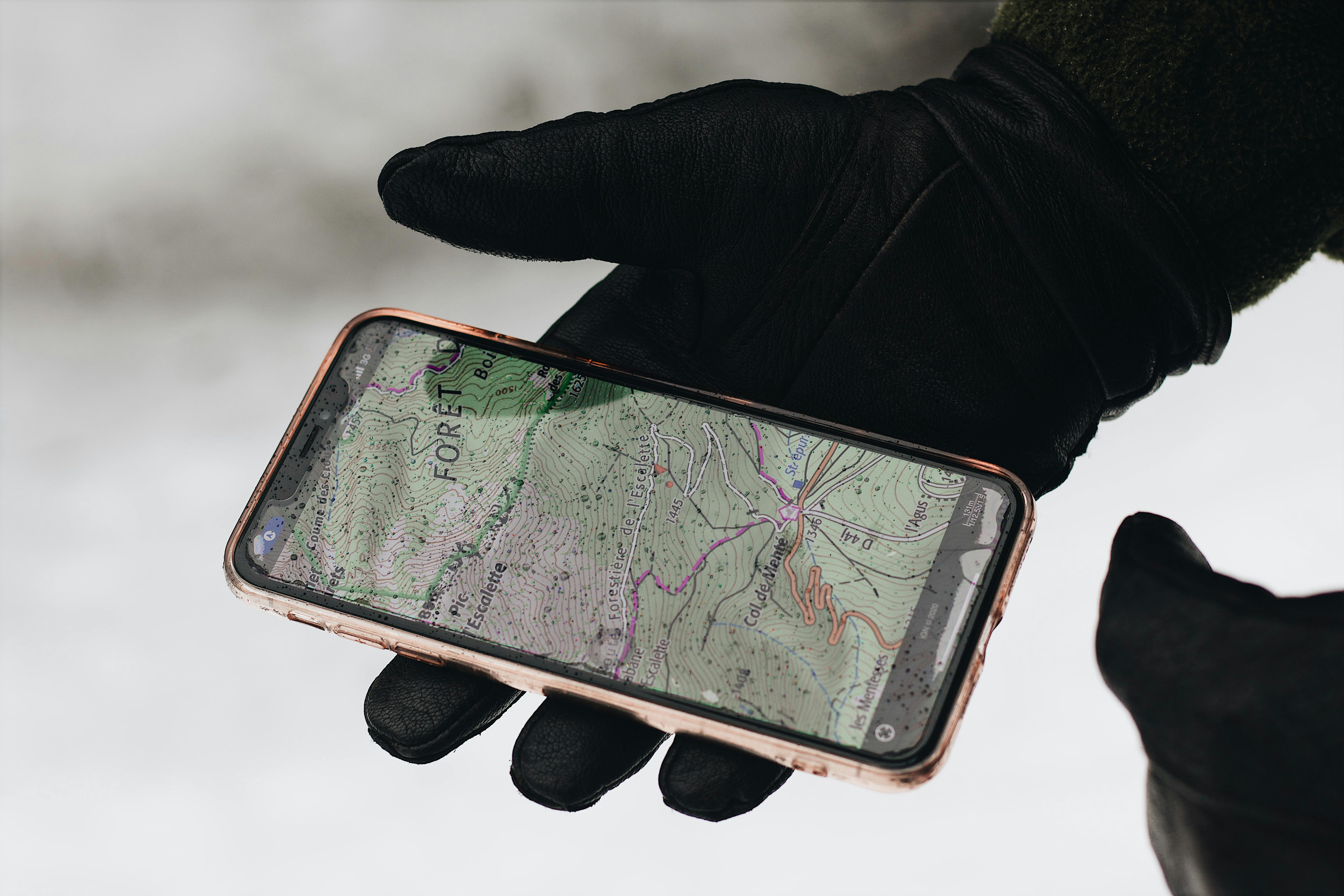
8. Tips to Prepare Before Travelling

A little preparation can prevent navigation problems during a journey.
- Download your destination and surrounding roads before departure.
- Include the complete route rather than saving only the destination.
- Open the downloaded map while you still have internet access.
- Check whether the saved map needs an update.
- Keep your phone charged or carry a power bank.
- Enable location services on your device.
- Save important addresses or travel details separately.
- Do not rely exclusively on offline navigation for emergency situations.
For long journeys, it is sensible to keep a second navigation option available. A downloaded map, a written address, and basic knowledge of your route can provide useful backup if your phone battery runs low or location services become unreliable.
9. Common Google Maps Offline Problems and Fixes
The Download Option Is Missing
Some regions may not support offline map downloads because of regional or contractual restrictions. Check that you are using the latest available Google Maps app and try selecting an area from the Offline maps menu.
The Map Download Is Stuck
Check your internet connection, available storage, and app permissions. Try downloading a smaller area over a stable Wi-Fi connection.
Google Maps Cannot Find Your Location
Check that location services are enabled. Move to an open area if possible, because buildings and underground spaces can interfere with satellite positioning.
Offline Directions Are Not Available
Confirm that you selected a driving route and that the complete route is inside the downloaded area. Offline walking, cycling, and public transport directions are not supported in the same way as offline driving navigation.
The Map Has Expired
Reconnect to the internet and update the downloaded area from the Offline maps menu. Check its status before starting a trip.
10. Frequently Asked Questions
Can I use Google Maps without mobile data?
Yes. You can use downloaded map areas without mobile data or Wi-Fi. Supported offline driving directions can work when the complete route is inside the saved area.
Does Google Maps offline work on Android and iPhone?
Yes. Google Maps supports offline map downloads on compatible Android and iOS devices, although availability and features can vary by region.
Can I use Google Maps offline for walking?
Google's offline map guidance states that walking directions are unavailable when offline. Downloading a map still lets you view the saved area, but you should not depend on offline walking directions.
Does GPS work without the internet?
A phone can often receive satellite positioning signals without a mobile internet connection. However, location performance depends on the device, surroundings, and satellite visibility.
Do offline maps use phone storage?
Yes. Downloaded areas are stored on your device and take up storage space. The estimated file size is displayed before you download a map.
How often should I update offline maps?
Check your downloaded areas before travelling. Google Maps may automatically update eligible maps when they are close to expiring and the device is connected to the internet, but you should not assume every map is always current.
Can I see live traffic while using Google Maps offline?
No. Live traffic information and traffic-based alternative routes require an internet connection.
Conclusion
Google Maps offline maps can make travelling easier when mobile data is unavailable or network coverage is unreliable. By downloading the right area in advance, you can keep important map information available and use supported driving directions without a continuous internet connection.
For the best results, download your complete route, check the map before leaving, keep your phone charged, and understand which features require an internet connection. Offline navigation is a useful backup, but it should not be treated as a replacement for live traffic updates or every online Google Maps feature.